
Adding Evidence with Multiple Measurement Topics
Adding Evidence with Multiple Measurement Topics
November 11, 2026
What's new
You can now grade more than one measurement topic in a single evidence. Before, each evidence covered one topic, so a test spanning several topics meant several separate entries.
Use this when:
• You are entering a test where each question covers a different topic.
• An assignment covers more than one measurement topic.
The steps below apply to all three grading methods: Group Grade, Goals Progress, and Topic. Each method has its own section for what is different.
Step 1: Open the New Evidence screen
This part works the way it always has.
1. Open your class.
2. Select Mastery.
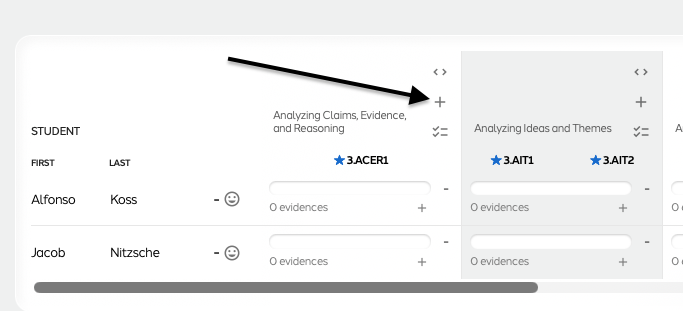
3. Select the plus (+) to add evidence. The New Evidence screen opens.
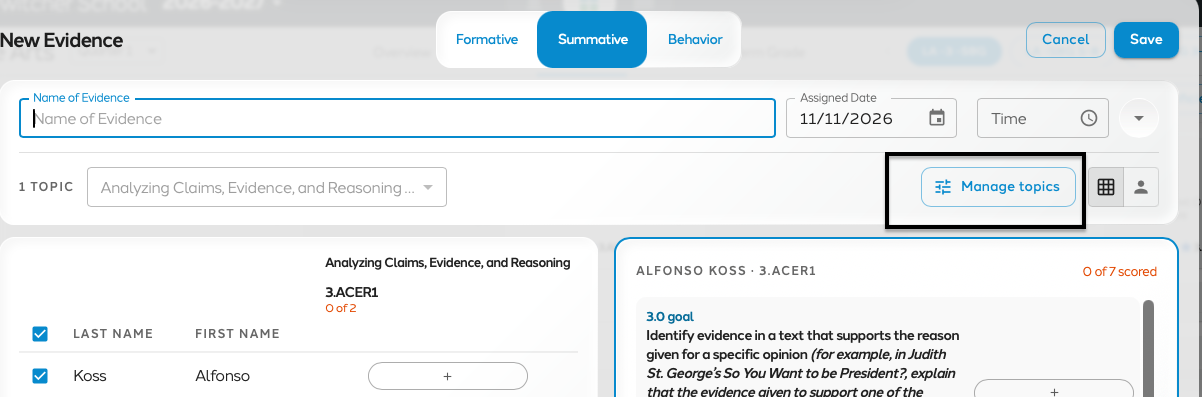
At the top of the screen you will now see 1 Topic with the current topic selected, and Manage Topics to its right.
Step 2: Add your topics with Manage Topics
Manage Topics is where you build the list of topics this evidence will cover.
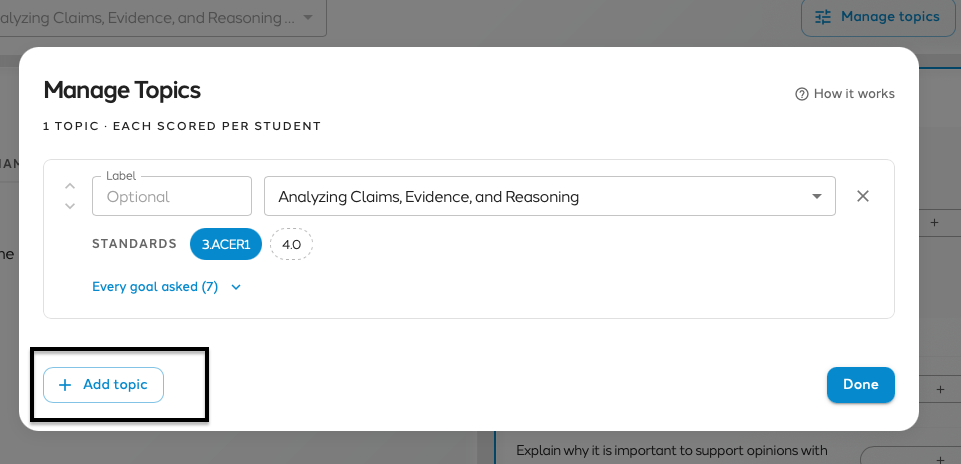
1. Select Manage Topics. The Manage Topics panel opens.
2. For the first topic, type a label if you want one, such as “Question 1”. Labels are optional.
3. Choose the measurement topic, for example Earth Changes.
4. Choose a learning goal for that topic.
5. Add another topic and repeat. Topics can come from different measurement topics: Question 1 could be Earth Changes and Question 2 could be Earth History.
6. Use the arrows on the left to move a topic up or down. This sets the order the topics appear in on the New Evidence screen.
7. Save, then select Done.
Back on the New Evidence screen, every topic you added is listed. If you added labels, each one shows under its topic (Question 1, Question 2, Question 3). Topics without a label show no label text.
Step 3: Choose how you want to view the evidence
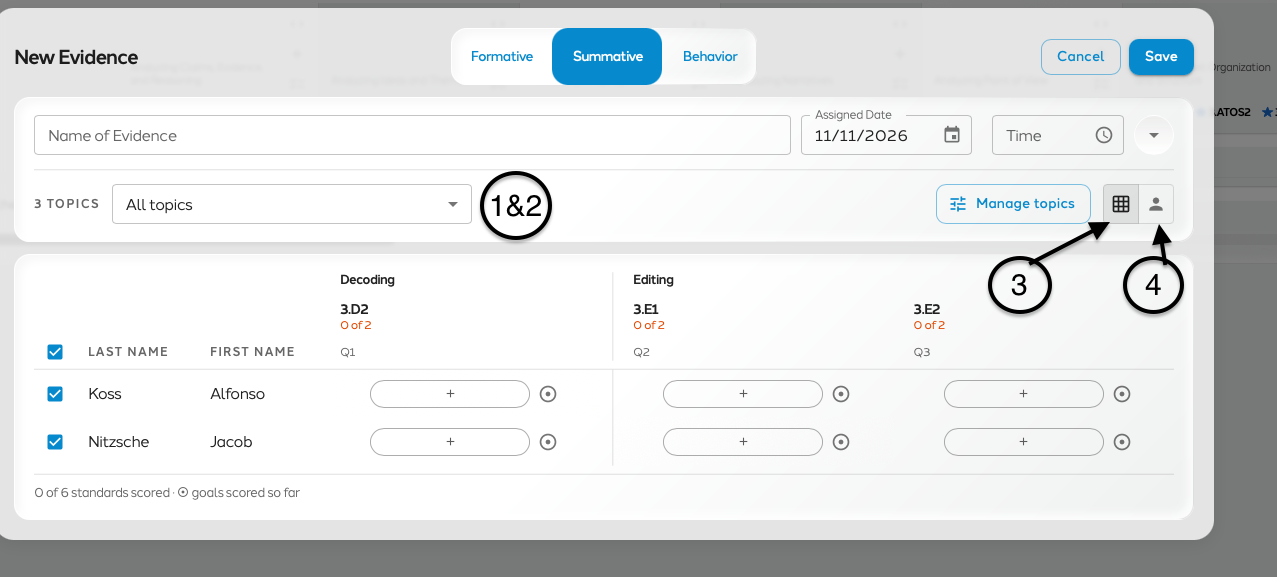
You can grade every topic at once or narrow the screen to one topic or one student.
| View | How to get there | What you see |
|
Default after you select Done | Every student with every topic you added |
|
Select All Topics and choose a topic | Only that topic, in the single-topic layout you are used to |
|
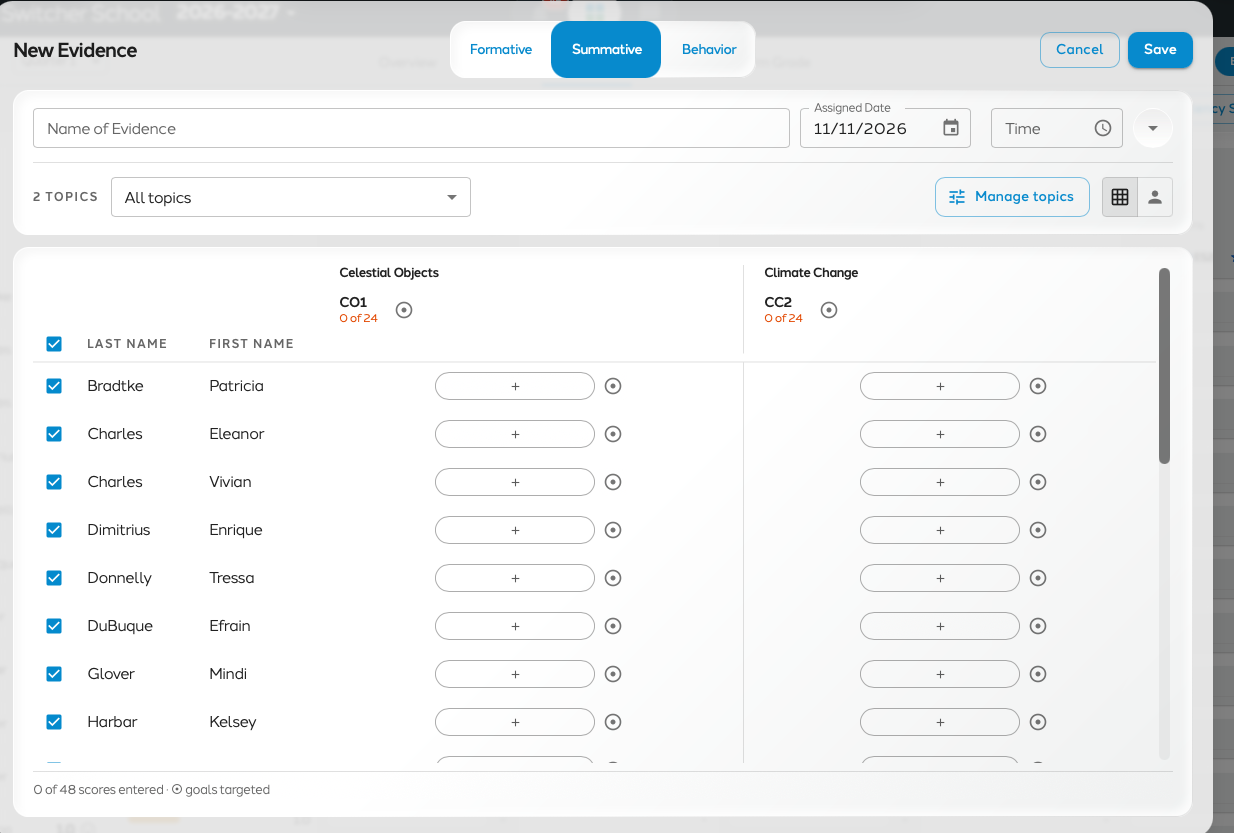
Select the grid icon on the right | All students in a grid |
|
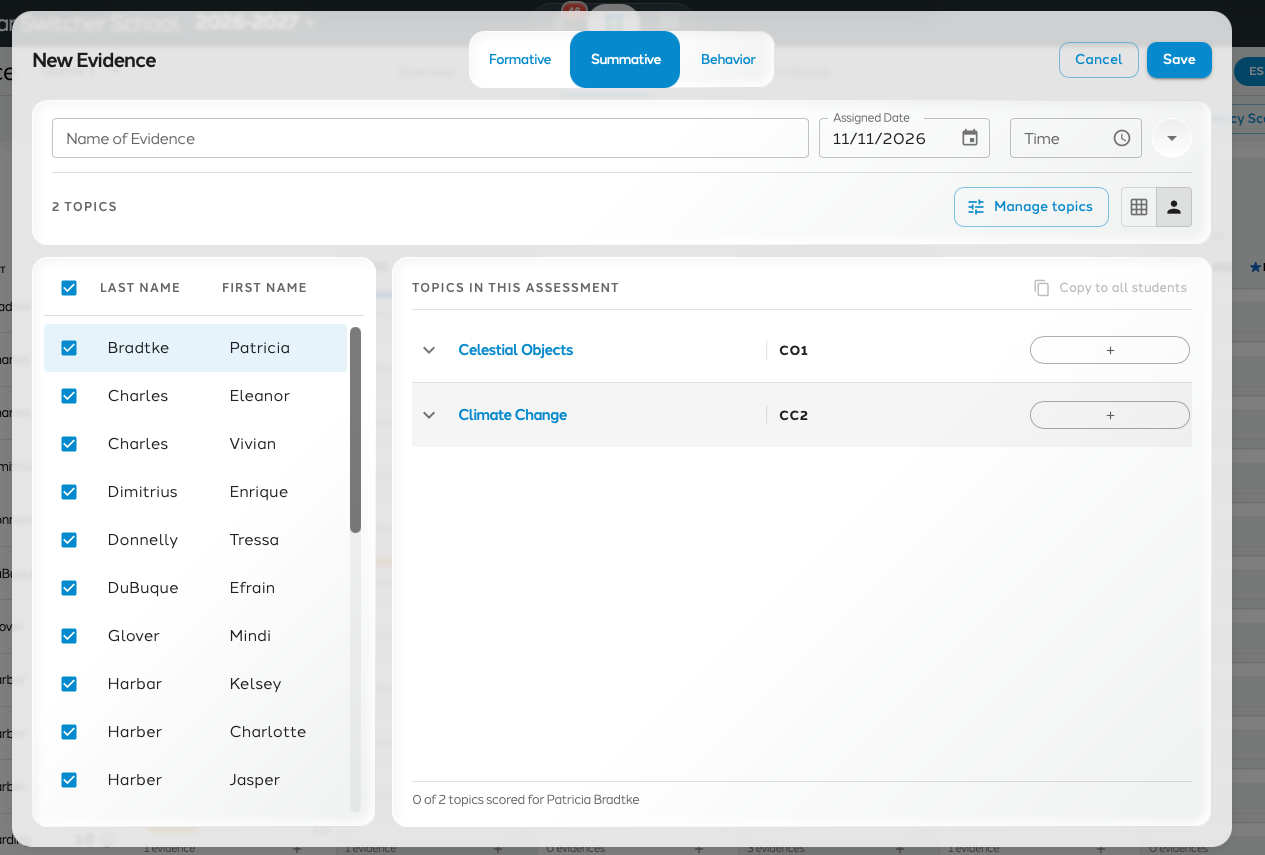
Select the person icon on the right | One student at a time with all of their questions or topics |
GRID VIEW
STUDENT VIEW
Grading with Group Grade
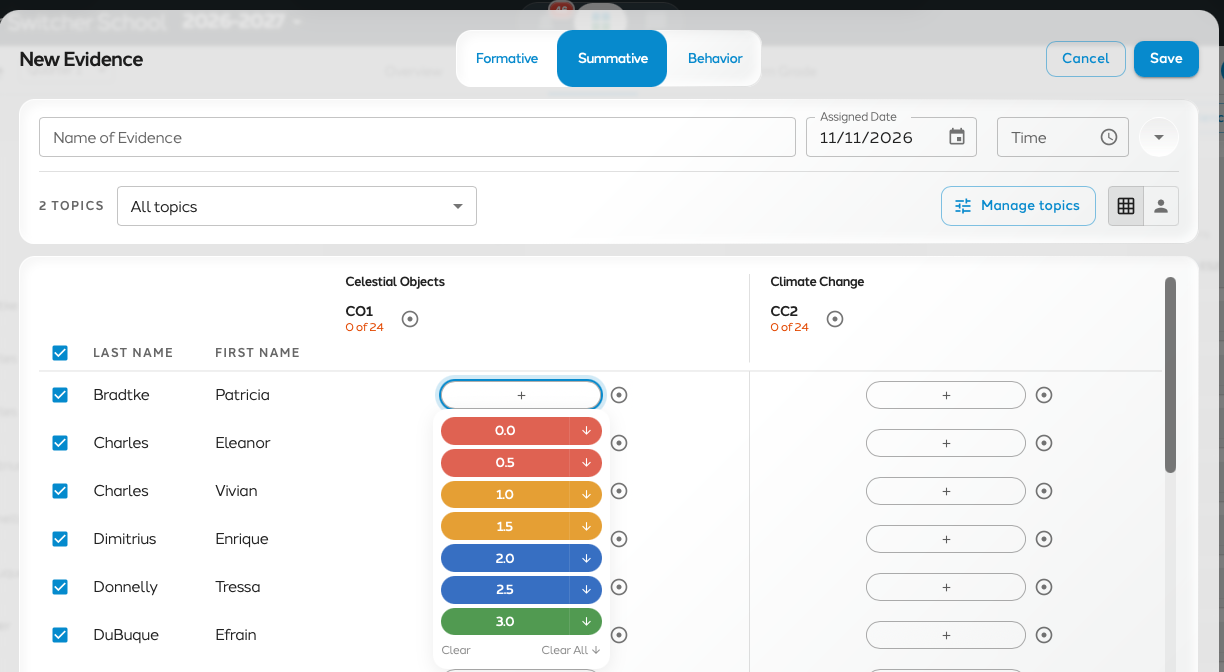
In Group Grade you give each student a score from 0 to 3.0 for each topic.
1. Follow Steps 1 and 2 to open New Evidence and add your topics.
2. For each student, select the grade box under a topic and choose a score from 0 to 3.0.
3. To tie a score to a specific goal, open the student and select the goal. In grid view, select the circle to open the goal page and choose specific goals there.
4. To save time, apply goals down to all students, apply the grade down to all students, or both.
5. Save the evidence.
Grading with Goals Progress
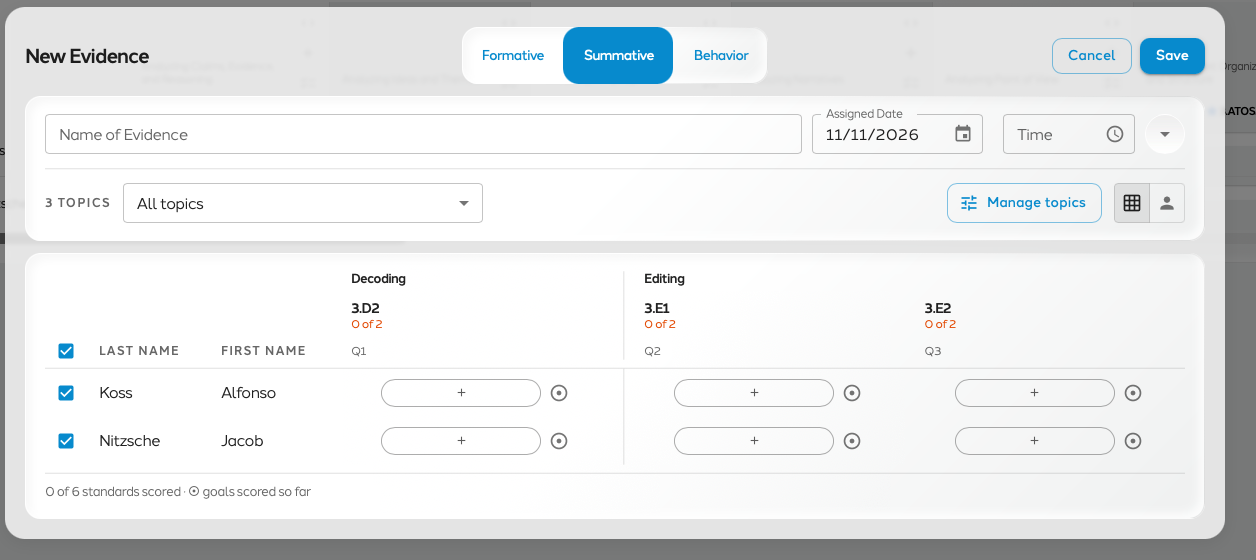
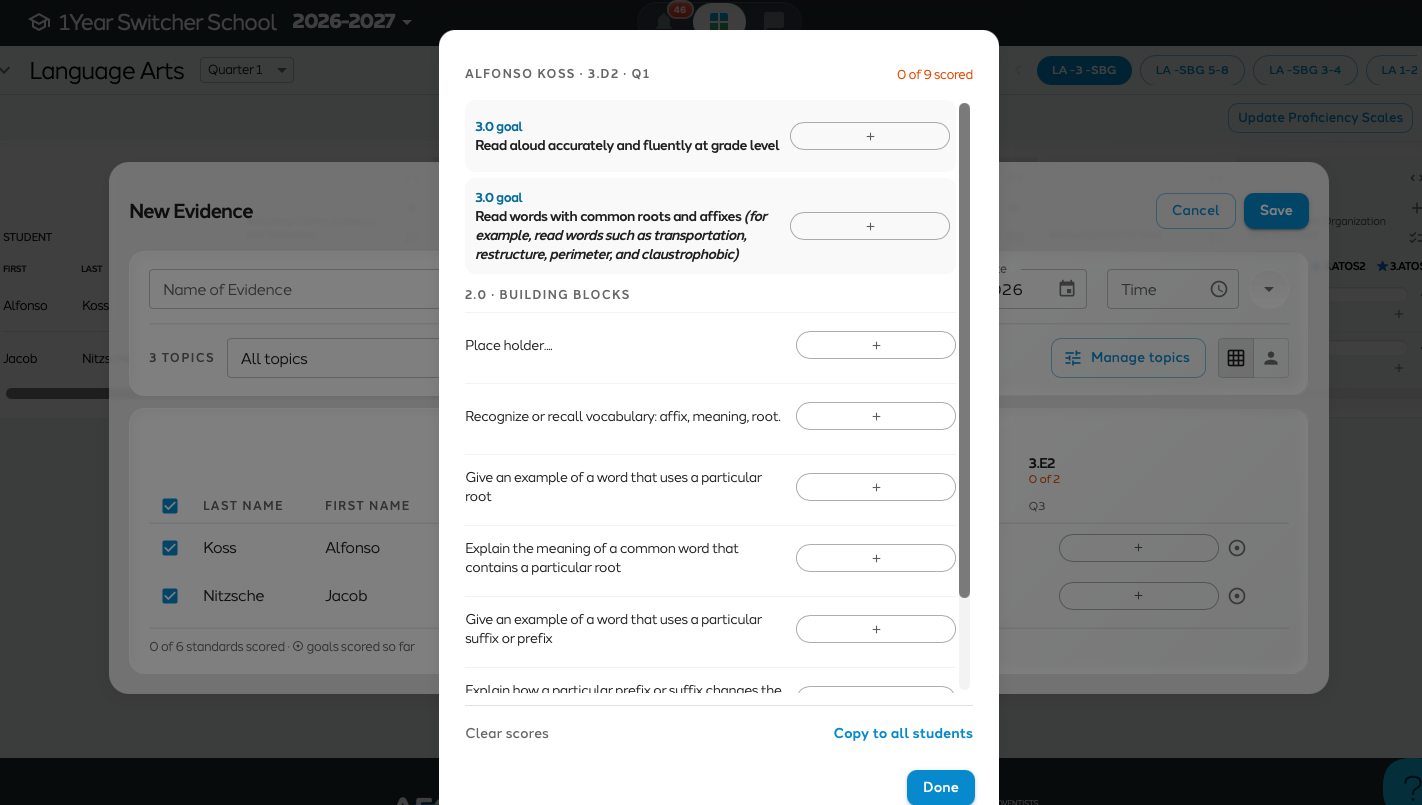
Goals Progress is based on goals, so you must select a goal before you can grade a student.
1. Go to Mastery and add a new evidence.
2. Select Manage Topics, add your topics, and choose the goals.
3. Select a student's grade box. The goal panel opens.
4. Grade the student one of two ways:
– Mark the 3.0. Select Proficient, then use proficient down to mark all of the goals proficient.
– Mark specific 2.0 goals. Select only the 2.0 goals the student has shown.
5. Save the evidence.
Remember: a student needs evidence for every 2.0 goal in a topic before they can score a 3.0.
The student-by-student view, grid view, and single-topic filter from Step 3 all work here too.
Grading with Topic
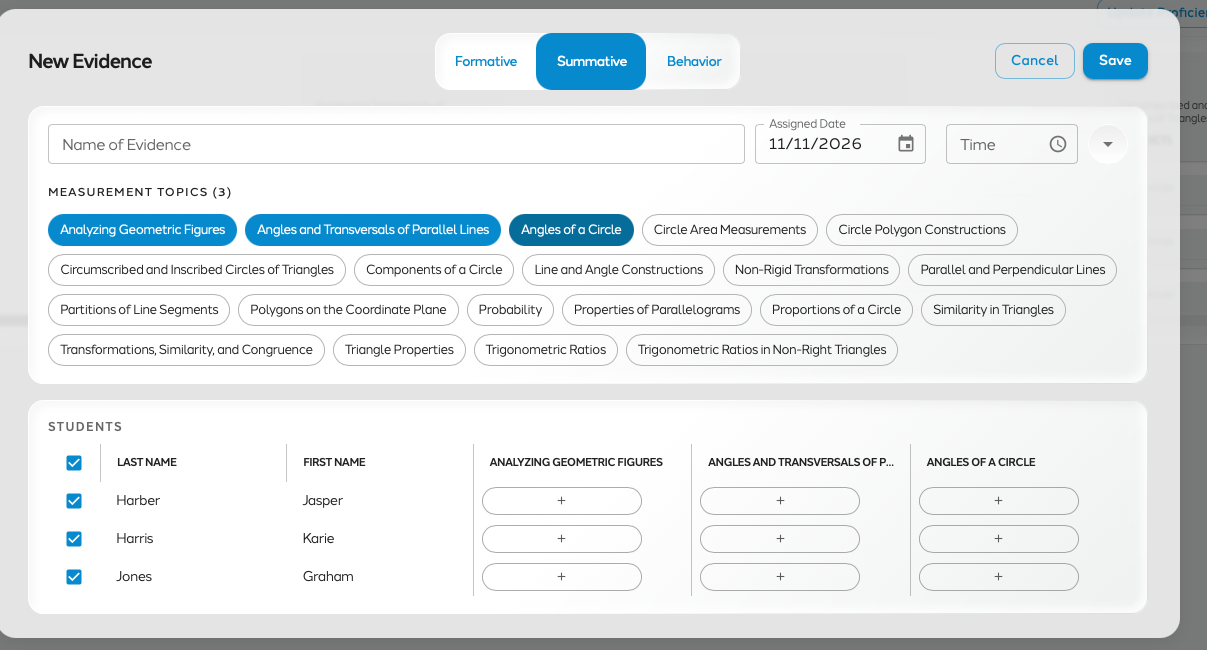
Topic grading has changed the least: the only difference is that you can now pick more than one topic.
1. Open New Evidence. All the measurement topics visible to you are listed.
2. Select each topic you want to grade.
3. Enter a grade for each topic.
4. Save the evidence.
No goal panel opens and there are no learning goals to choose, because you are grading the topic itself.
Quick reference
| Control | Where it is | What it does |
| Plus (+) | Mastery | Opens the New Evidence screen |
| Manage Topics | Top of New Evidence, right of the topic | Opens the panel to add, label, and reorder topics |
| Label | Manage Topics | Optional name for a topic, such as “Question 1” |
| Arrows | Left side of Manage Topics | Move a topic up or down |
| All Topics | New Evidence | Filters the screen to a single topic |
| Grid icon | Right side of New Evidence | Shows all students in a grid |
| Person icon | Right side of New Evidence | Shows one student at a time |
| Circle | Grid view | Opens the goal page to choose specific goals |
| Apply down | Grade and goal entry | Copies a grade or goals to all students |
| Proficient down | Goals Progress goal panel | Marks all goals proficient |